
How to use SnarkBack™.
SnarkBack™ gives you two ways to generate a reply. Which one you pick depends on whether you already have a message in hand.
Use this when someone has sent you a text, DM, email, or comment and you want SnarkBack™ to reply to that specific message. You paste (or type) their words in.
Use this when there is nothing to paste. You are starting the conversation, or the situation lives in your head. You describe what is going on and what you want to say.
Example A — Paste Message
A friend sent you a passive-aggressive text and you want Shakespeare to answer them.
Open the SnarkBack™ homepage
Launch SnarkBack™. The homepage is where all replies are generated. Above the input bubble you'll see two tabs: Paste Message and Describe Situation. Make sure Paste Message is selected — it is the default.
Paste (or type) the message you received
Tap the input bubble labeled "Paste their message." Paste the exact message someone sent you. For this example, imagine your friend texted you:
You'll see a live character counter in the lower-left corner and a Clear button in the lower-right corner if you want to start over. There is no send arrow inside the bubble — replies are generated only after picking a tone or persona below.
Choose a tone or a persona
Scroll down. You'll see two sections:
- Select a level of sarcasm — Mild, Witty, Full Snark, Unhinged. These are text-only tones.
- Persona or Archetype — a grid of character cards like William Shakespeare, Valley Girl, Rocket-Suit Billionaire, and more.
Under the Personas category you can also search personas by name, or narrow the grid with the filter chips: All, Popular, Characters, History, Generations, Animals, Archetypes.
For this example, tap the History filter (or search "Shakespeare") and tap the William Shakespeare card. When selected, the card's border turns SnarkBack™ blue with a thicker ring, so it's clear which one is active. Only one tone or persona can be active at a time — picking Shakespeare de-selects any tone.
Tap Generate reply
Beneath the persona grid is a blue Generate reply button. Tap it once. This counts as one generation against your daily cap. Within a couple of seconds a new panel appears with your reply. Two shortcuts also exist: flip the Generate instantly when a card is chosen switch at the top of the Personas category to fire the reply the moment you tap a card, or simply press and hold a card for about half a second.
Review the reply — Card or Text?
Because Shakespeare is a persona (not a tone), you'll see a Card | Text toggle above the reply. It defaults to Card. The graphic card looks something like this:
Thy leisure is imagined, friend — my labors merely wear a quieter cloak. Pray, mistake not silence for idleness.
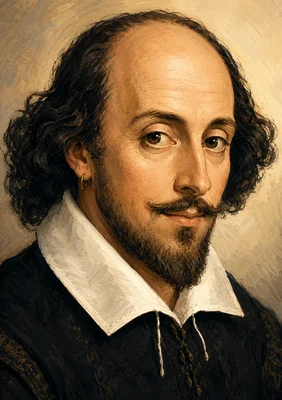 William Shakespeare
Tap Text to see the same reply as plain text with no artwork:
Card is best when you want to share the reply as an image (screenshot, Instagram story, group chat). Text is best when you want to send words only (SMS) in-line, inside Messages, iMessage, WhatsApp, email, and so on.
Fine-tune, then send
Beneath the reply is the action panel. You have seven controls — eight when you're viewing a graphic card, which adds Copy image:
Make the above reply...
Shorter tightens the reply into fewer words, and Longer expands it with more detail. Less intense softens the tone; More intense sharpens it. Send opens your device's share sheet so you can send through Messages, Mail, or any app. Copy copies the reply to your clipboard. Copy image appears when you're viewing a graphic card and copies the rendered card image to your clipboard, ready to paste into Messages, email, or social apps. Refresh generates a brand-new reply from scratch. Shorter, Longer, Less intense, and More intense each generate a new reply built off the previous one. All five buttons count as one use against your daily cap.
Tap Send to open your phone's share sheet and pick Messages, Mail, or any other app. The reply is placed into the destination app for you to send.
Example B — Describe Situation
You don't have a message to paste. You need to start the conversation, and you want Shakespeare to help you say it.
Switch to the Describe Situation tab
On the homepage, tap the Describe Situation tab above the input bubble. The prompt inside the bubble changes to invite a description instead of a pasted message.
You'll also notice a new row appears inside the input bubble labeled Reply framing with two options: Continue and Coach Me. This row only appears in Describe Situation mode.
Describe what's going on and what you want to say
Type in a few sentences that explain the situation and the outcome you want. Be specific about the person, the vibe, and what you'd like to communicate. Example:
Pick a Reply framing — Continue or Coach Me
Continue tells SnarkBack™: "Just write it for me in my own voice." It goes straight from your description to a finished reply.
Coach Me tells SnarkBack™: "Walk me through the strategy first." It opens a short coaching session before writing the final reply. That's what we'll use here — tap Coach Me.
Choose a tone or persona, then tap Generate reply
Scroll down to Persona or Archetype, pick William Shakespeare, then tap the blue Generate reply button.
Read the mini coaching session
Because you chose Coach Me, SnarkBack™ doesn't jump to a finished reply. Instead it opens a coaching card that walks you through the strategy:
Mini coaching session
- State the facts plainly. Open with the concrete issue and how long it has gone unresolved.
- Show you've already tried. Mention the two prior attempts so it doesn't look like a first complaint.
- Give a clear next step. Ask for a specific timeline, then name the escalation you'd otherwise pursue.
- Keep the Shakespearean voice measured. Elevated language works only if the message stays polite.
Suggested reply
"Good sir, a week hath passed since first I sought thy aid — twice have I written, and twice heard naught. The heat remaineth broken, and the cold no gentler for our silence. Prithee, name a day this week upon which it shall be mended, lest I be compelled to seek remedy through the proper offices of the city."
At the bottom of the coaching card is the blue Approved. Generate reply. button. Tap it when the strategy looks right. If it doesn't, you can edit your description above and generate again.
Review the final reply
Because Shakespeare is a persona, you again get a Card | Text toggle above the final reply. Card looks like this:
Good sir, a week hath passed since first I sought thy aid — twice have I written, and twice heard naught. The heat remaineth broken, and the cold no gentler for our silence. Prithee, name a day this week upon which it shall be mended, lest I be compelled to seek remedy through the proper offices of the city.
William ShakespeareTo send a reply inside a text or email thread rather than as an image, tap Text to switch:
Note: some personas — Professional & Polite, Romantic Flirt, and Faithful Friend — are text-only by design and won't show a Card option. Tones (Mild, Witty, Full Snark, Unhinged) are also text-only.
Fine-tune and send
The same action controls appear beneath the reply, and they behave identically to Example A:
Make the above reply...
Shorter tightens the reply into fewer words, and Longer expands it with more detail. Less intense softens the tone; More intense sharpens it. Send opens your device's share sheet so you can send through Messages, Mail, or any app. Copy copies the reply to your clipboard. Copy image appears when you're viewing a graphic card and copies the rendered card image to your clipboard, ready to paste into Messages, email, or social apps. Refresh generates a brand-new reply from scratch. Shorter, Longer, Less intense, and More intense each generate a new reply built off the previous one. All five buttons count as one use against your daily cap.
Tap Send to open your device's share sheet and drop the reply into Messages, Mail, or your email client of choice.
Optional — save the coaching session
If you liked the coaching walkthrough and want to revisit it later, open the History tab. Coaching sessions live under their own Coaching tab there, separate from replies, and can be favorited or archived just like a reply. (History requires a signed-in account.)
Quick tips
- 1Tones (Mild, Witty, Full Snark, Unhinged) are text-only and work for any input.
- 2Personas and archetypes can reply as a graphic card or plain text. Some tones, like Professional & Polite, Romantic Flirt, and Faithful Friend, are text-only by design.
- 3The optional Coach Me, under Describe Situation, walks you through strategy before generating the final reply.
- 4Every reply generation counts against your daily cap — including Refresh and the Shorter, Longer, Less intense, and More intense adjustments. Each tap generates a fresh reply and uses one from your daily allowance, so tune deliberately.
- 5In the Personas category you can search personas by group.